
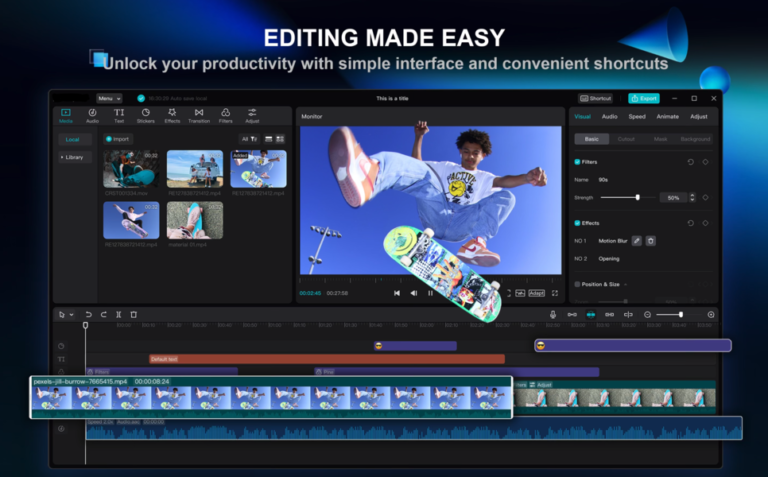
Editing is where a good video really comes together, and it is far more approachable than most people expect. Whether you are working on your phone in a spare ten minutes or sitting down at a desktop for a proper session, the same handful of steps will take you from a folder of raw clips to something you are proud to share. This is our plain-English walk through the basics: choosing your software, planning your video, cutting your clips, adding a few tasteful effects, and exporting it for wherever it needs to go.
Why editing is worth learning
Video is one of the most powerful tools a small business has. A short promotional video, a helpful tutorial, or a clip that shows off a product can do the work of a dozen paragraphs, and it lets people see the real you before they ever pick up the phone. The filming matters, of course, but it is the edit that turns a pile of footage into a story worth watching.
The good news is that editing is easier than it looks. You do not need a studio or years of training to make something clear and engaging. You need a plan, a bit of patience, and a tool you feel comfortable in. Learn a few basic moves and you will be surprised how quickly the rest falls into place.
You do not need expensive gear to edit well. A phone, a plan and a little patience will take you a long way.
Step 1: Choose your editing software
Your first decision is where you will edit. Both phone and desktop can produce lovely results, so the right choice comes down to what you already have and how you like to work.
If you are editing on your phone
CapCut is the most popular mobile editor right now, and for good reason: it is free, friendly, and packed with tools that used to belong on a desktop. On an iPhone or iPad, iMovie is already installed and is a gentle place to start. VLLO is another well-loved option, and LumaFusion is the one to reach for when you want more control and are ready to grow into it. Editing on a phone is perfect for quick social clips and for those moments when the only device you have is in your pocket.
If you are editing on a desktop
A bigger screen gives you room to work with longer videos. Adobe Premiere Pro and Final Cut Pro are the professional favourites, and DaVinci Resolve is a genuinely capable free option with beautiful colour tools. If you are an absolute beginner, CapCut for Desktop keeps things simple while you find your feet. In our editing courses we teach Premiere, CapCut and VN, so whichever way you lean, there is a friendly path in. Pick one tool, learn it well, and resist the urge to keep switching.
Step 2: Plan your video
Before you touch the timeline, get clear on three things. What is the one message you want people to walk away with? What are the key points that support it? And what style and tone suit your audience, calm and professional, or bright and playful? A minute spent answering those questions will save you an hour of second-guessing later, and it keeps your edit honest to what you set out to say.
Step 3: The editing workflow, step by step
Once you know your message and your tool, the actual editing follows a simple, repeatable rhythm. Work through it in order and it stays manageable from start to finish.
Import and organise your clips
Bring all your footage, photos and audio into your project, then take a moment to tidy it. Rename the good takes, tuck the rejects to one side, and give yourself a clear view of what you are working with. A little order at the start makes everything after it faster.
Make your rough cut
Drop your best clips onto the timeline in the order that tells your story, then trim the obvious dead weight from the start and end of each one. Do not aim for perfect here. The goal of the rough cut is simply to see the shape of the whole thing from beginning to end.
Tighten the pacing
Now go back through and be a little ruthless. Cut the long pauses, the ums, and any moment where you feel your own attention drift. Good pacing is the quiet secret of an engaging video: keep it moving, and your audience stays with you.
Add simple transitions
A straight cut is your friend most of the time. Where you do want a transition, a gentle cross-dissolve is usually all you need. Use the flashier wipes and spins sparingly, if at all. Nothing dates a video faster than an effect used just because it was there.
Add titles and captions
A clear title sets the scene, and on-screen captions make your video easy to follow when people watch with the sound off, which on social media is most of the time. Keep your text large, readable, and consistent in font and colour so it feels like part of the same piece.
Bring in music and sound effects
The right music lifts a video enormously. Use royalty-free tracks so you never run into copyright trouble, and mind your levels: the music should sit gently underneath your voice, never fight it. A few soft sound effects can add polish, but as with everything, a light touch wins.
A light colour and brightness pass
You do not need to be a colourist to make footage look better. A small nudge to brightness, contrast and warmth can turn a flat clip into something inviting. Aim for natural and consistent across your shots rather than dramatic, and step away for a minute before you commit, so your eyes stay honest.
Export with the right settings
Finally, export for wherever your video is going. For most online use, an MP4 at 1080p is a safe, universal choice. Match the shape to the platform: wide for YouTube and websites, tall for reels and stories. Do a quick watch of the finished file before you upload, just to be sure the sound and captions all made it through.
Quick tips for a cleaner edit
- Save your project often, and back up your footage in a second place before you start.
- Cut on the action or the beat of the music, and your edits will feel invisible.
- Keep effects, fonts and colours consistent so the whole video feels like one piece.
- Watch the full thing right through before you export, ideally with fresh eyes the next day.
- When in doubt, cut it out. A shorter, tighter video almost always beats a longer one.
Editing really is a skill anyone can learn, one small step at a time. Start with a simple project, get comfortable with the moves above, and each video will come together a little faster than the last. If you would like a hand along the way, our editing courses and free toolkit are here whenever you are ready.
Want to try this yourself?
Whether you want to learn to edit your own videos or hand the whole thing over to us, we can help you find the right first step. No pressure, just a friendly chat.
Have a chat